The kiosk
One tablet at the door. Two buttons. Done.
The kiosk is the heart of Punchy: a dedicated screen you keep at home where the people who help you out clock in and out on-site. They don't install anything and never create an account; they just tap a personal PIN and press a button, in English or Spanish (one tap on the kiosk switches, and the choice sticks to the device). And there's no GPS: a punch records when someone arrived and left, never where they are.
What is the kiosk, exactly?
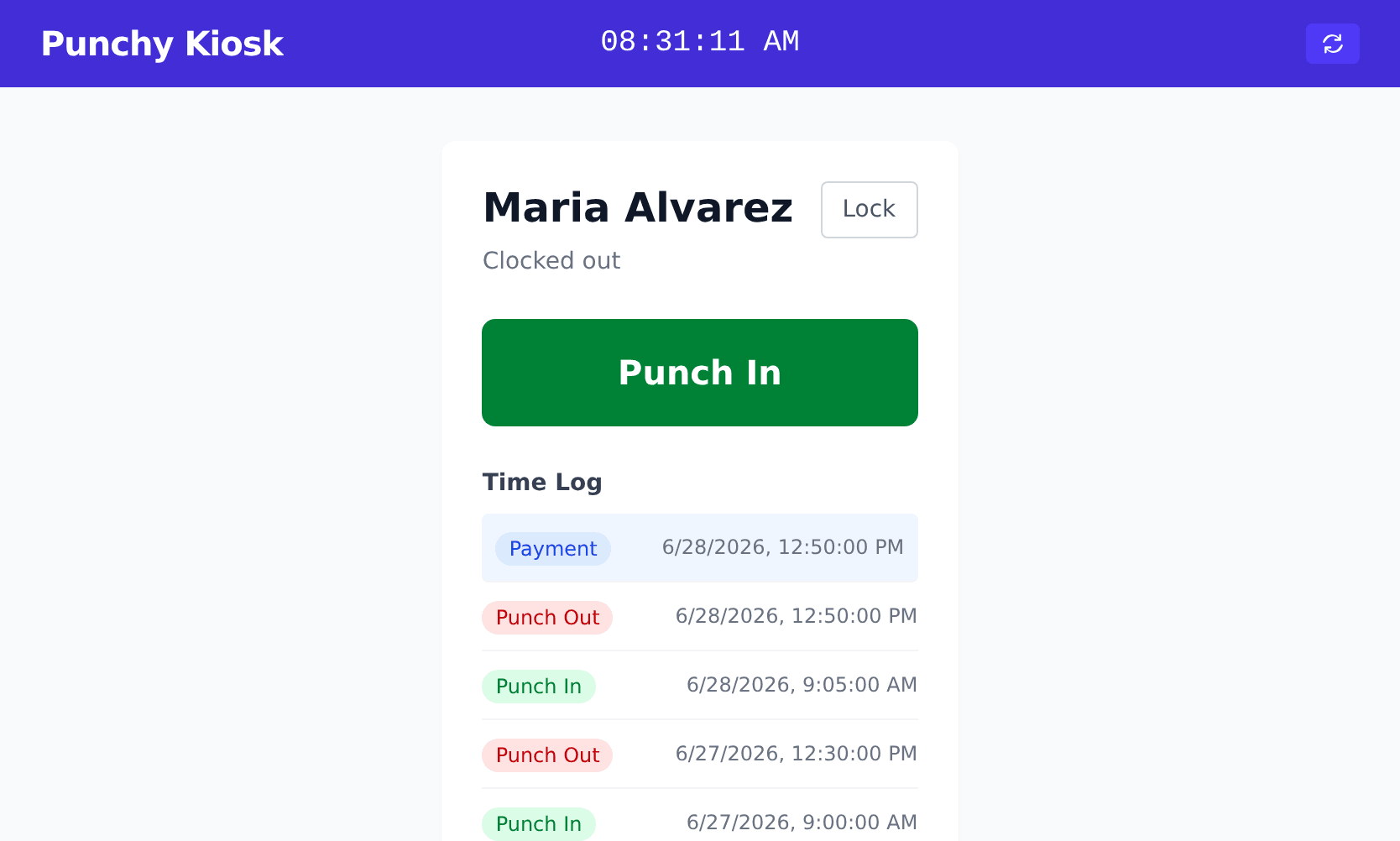
It's a private web page (your own kiosk link) that you open on a tablet or phone you dedicate to it and leave running at home. Instead of texting “what time did you get here?”, the person taps their PIN and presses Punch In when they arrive and Punch Out when they leave. Every shift lands in your dashboard automatically.
Because it lives in the browser, the kiosk runs on an old iPad, a spare Android phone, or whatever you already have by the door. You manage your account from your own computer or phone; the kiosk device only ever needs the link.
Setting it up takes a few minutes
Add your people and give each a PIN
On your dashboard, add everyone whose hours you want to track and set a personal PIN (at least 6 digits) for each. The PIN is how they unlock their own record at the kiosk; share it with them privately.
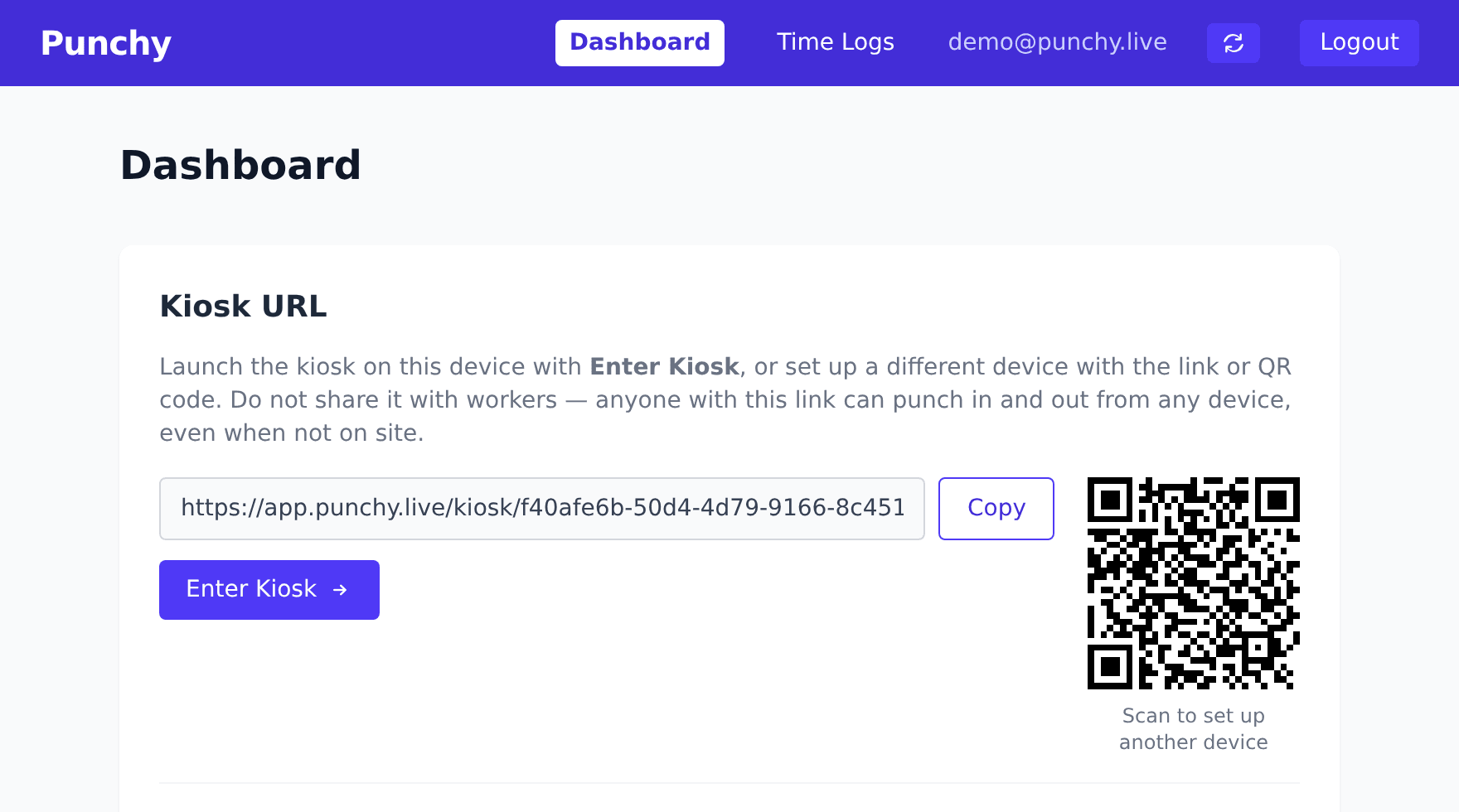
Open your kiosk link on a dedicated tablet or phone
Open your private kiosk link in the browser of a dedicated device you keep at home; an old tablet or spare phone is ideal. Your dashboard also shows a QR code for the same link, so a phone or tablet can reach it with a quick camera scan instead of typing. There's nothing to install, and the people you track never sign in. Then turn on your device's built-in kiosk mode (Guided Access on an iPad, app pinning on Android) so the screen stays locked to Punchy and no one can slip out to the rest of the device.
Follow the step-by-step device guide below ↓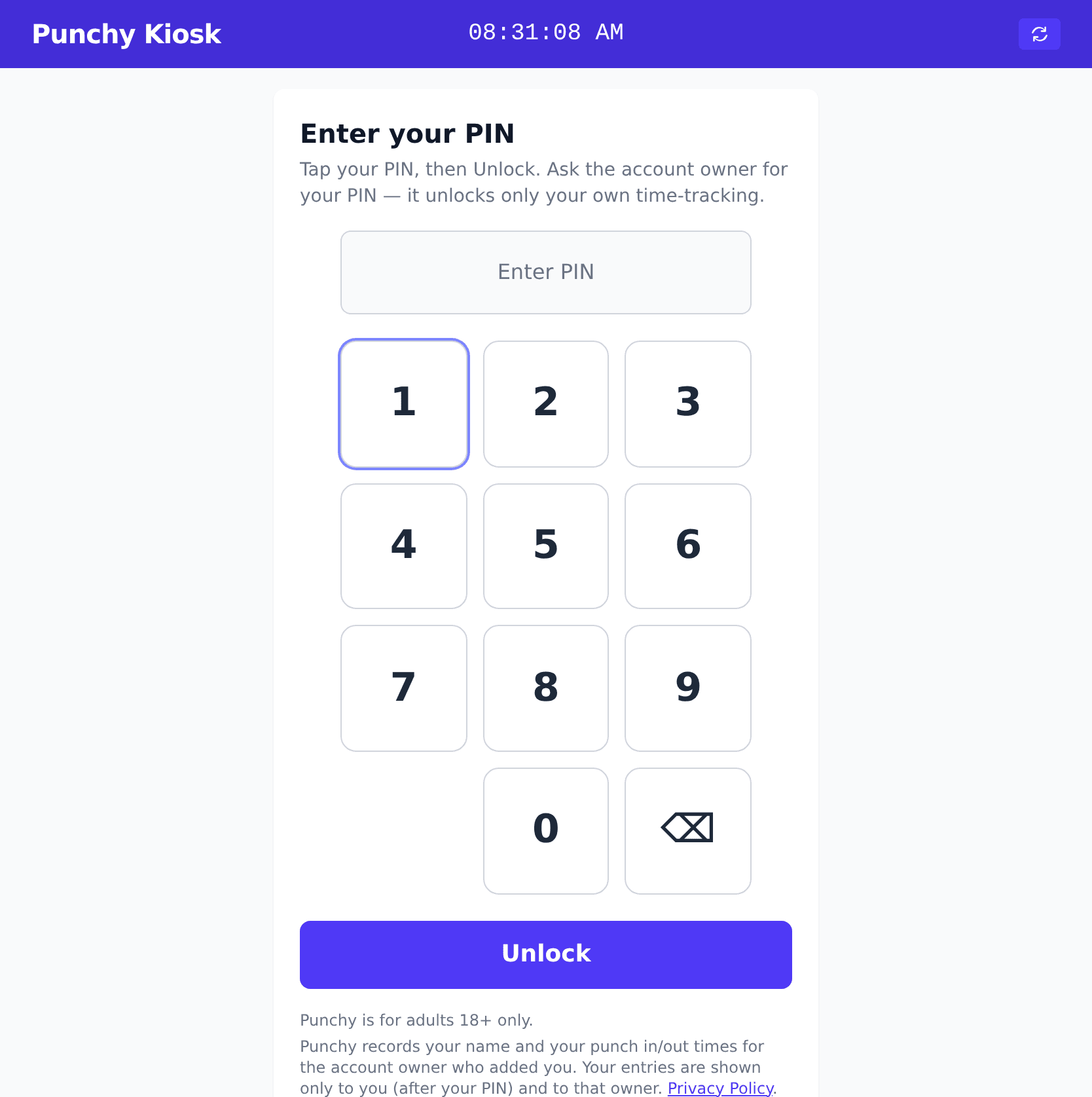
They tap their PIN to punch in and out
Leave the device by the door. Each person enters their PIN, sees only their own name and hours, and presses Punch In or Punch Out. The screen returns to the keypad on its own, ready for the next person.
Lock the device to Punchy, step by step
A kiosk works best on a device that can't wander off into games and group chats. Both Apple and Android have a built-in kiosk feature that keeps the screen on one thing until you unlock it. Here's the once-only setup, with links to Apple's and Google's own guides for the device-specific taps.
iPad or iPhone
Apple calls its built-in kiosk feature Guided Access. Once it's on, the device shows only Punchy until you unlock it.
Open your kiosk link
Your dashboard shows a QR code next to your kiosk link. Point the device's camera at it and tap the link that pops up; the kiosk opens in Safari.
Add it to the Home Screen
In Safari, tap the Share button (the square with an arrow), then Add to Home Screen. You get a Punchy icon that opens the kiosk full screen, like an app.
Apple's guide: add a website to the Home Screen (opens in a new tab)Turn on Guided Access
In Settings, go to Accessibility, then Guided Access. Switch it on and set a passcode only you know; that passcode is how you unlock the device later.
Apple's guide: use Guided Access (opens in a new tab)Launch and lock
From the Home Screen, tap the Punchy icon, triple-click the side button (or the Home button on older devices), and tap Start. Done: the kiosk is all the device will show. Triple-click again and enter your passcode to get back out.
Android tablet or phone
On Android the built-in kiosk feature is called app pinning. Menus vary a little between brands, so if a step doesn't match your device, Google's guides below show the current steps for yours.
Open your kiosk link
Your dashboard shows a QR code next to your kiosk link. Point the device's camera at it and tap the link that pops up; the kiosk opens in your browser.
Add it to the Home screen
In Chrome, open the menu (the three dots), then tap Add to Home screen. Next time, the kiosk is one tap away.
Google's guide: add a web app to the Home screen (opens in a new tab)Turn on app pinning
In Settings, search for "pinning": on most devices it lives under Security, and Samsung calls it Pin windows. Turn it on, and choose to ask for your PIN before unpinning.
Google's guide: pin & unpin screens (opens in a new tab)Pin the screen
With the kiosk open, open your recent apps, tap the icon at the top of its preview card, and choose Pin. The device now stays on the kiosk until you unpin it with your PIN.
Two tips for any device: keep it plugged in, and set its screen to stay awake in the display settings, so the kiosk is always ready by the door.
Made for a shared device
A kiosk sits out in the open, so Punchy is careful by default.
Behind a personal PIN
A PIN reveals only that one person’s record: no one can browse the roster or see anyone else’s hours.
Locks itself
The kiosk returns to the PIN screen after each punch and after a short idle. After too many wrong PINs in a row, the whole kiosk locks for a while, and you get an email so you know it happened.
You stay in control
Your kiosk link is private to you. If it ever turns up somewhere it shouldn’t, rotate it in one tap; the old link and QR code stop working immediately.
Set up your kiosk today
Create an account, add your people, and open the link on a tablet. It's free.
Get startedNo credit card required.